Open and navigate server conversations, use the prompt outline and Find controls, read supported rich content, and export a conversation.
Tags: Alternative
[download original] [view raw text] — 8,553 bytes
On this page
Alternative: reading, rendering and export
Open and navigate a thread
Select a conversation or matching passage from the shelf. Alternative fetches the complete supported thread from the selected server. The heading shows the conversation title and retained date/context; the reading summary includes message and word counts and an estimated reading time.
Scroll the reading pane independently of the conversation list. The status bar shows progress through the rendered thread. Reading position is saved locally for that server/conversation identity. If the underlying content or window layout changes substantially, the restored visual position can differ.
Use Show conversation outline to list user prompts. Select a prompt to jump to the corresponding message. The outline’s At a glance metrics describe the current normalized conversation, not the whole server and not a quality rating. Back to the beginning returns to the top of the open thread.
Find inside the current conversation
Open a conversation and press Ctrl+F, or choose the toolbar’s find icon.
Type a word or phrase.
Inspect the match count and highlighted occurrence.
Press Enter for the next match or Shift+Enter for the previous match. The arrow buttons provide the same navigation.
Close the find bar to remove the find highlights.
Find acts on visible/available rendered content in the current thread; it does not send a new archive query. A matched collapsed details section can open so you can see the target. A missing export field cannot become searchable merely by toggling a display preference.
Code, mathematics and diagrams
Code blocks use offline syntax highlighting with VS Code Light+ or Dark+ colors following the application appearance. Each code block can be copied independently. Highlighting decorates the original text; it does not execute code or correct the program.
Settings → Reading & appearance → Wrap long code lines and Show code line numbers are independent and start disabled. Wrapping fits long code to the block width; numbers identify logical source lines, including blank lines. Wrapped continuations keep the same source line number. Numbers are display-only and appear only in Code view: HTML, SVG, Mermaid and chart Render views have no gutter. Copying and export preserve the source without numbers or inserted wrapping.
Supported mathematical notation renders locally with the bundled MathJax 4 assets. Mermaid diagrams render from their retained source. If a diagram has a common supported formatting defect, deterministic repair candidates may make it render. The interface identifies a repaired diagram and allows inspection of original/repaired source. Ordinary copying and Markdown export preserve the archived source; Copy repaired is a separate, deliberate action.
Not every invalid diagram can be repaired. A readable source/error fallback is preferable to silently inventing a different diagram. Inspect the source if the display does not represent what you expected.
SVG source previews
A code block with no language tag, or an svg or xml tag, can offer SVG / Code when it contains one complete, valid SVG document. Raw SVG, strict Base64 and data:image/svg+xml;base64, forms are supported. HTML containing an SVG, extra prose or elements, malformed content and other language tags keep their code presentation.
The initial view is Code. Select SVG for the image and Code to return. Copy preserves the original source, including an original Base64 representation. SVG preview is image-only: scripts and external resources do not run or load. The optional line-number gutter is hidden while the image is rendered.
Rich exported elements
The renderer supports applicable tables, charts, cards, citations, math, diagrams and image-placeholder behavior from the suite’s conversation renderer. These features depend on metadata actually supplied by the server. A normalized export may not contain all provider-specific fields needed to reproduce the original web interface.
Supported saved Grok cards, citations and artifacts, and ChatGPT source/file citations, entities and chart data, depend on the metadata supplied by the server. Unknown or incomplete records keep a readable fallback or source view; archived tools, tasks and automation suggestions do not execute.
Available images load within the conversation according to Settings → Reading & appearance → Images: Click to load only or Load automatically. Unavailable images retain visible placeholders. Alternative does not provide Reader’s persistent image resource cache. External destination links require an explicit action. The application does not infer hidden reasoning or reconstruct missing attachments. Show reasoning when available displays only reasoning that exists in the retained conversation.
Useful JSON-only assistant and reasoning responses render as formatted, syntax-highlighted JSON; empty or internal-only responses remain hidden. Whole-message copying and export retain the source. Exported file citations use readable filename chips and a document icon; a label does not create access to a missing attachment.
Safe formatting and HTML previews
Ordinary prompts and responses can show safe inline HTML formatting, including <mark> and spans with bounded text/background colors. Scripts, event handlers, URL-bearing CSS and styles that affect the application are rejected. Numeric VeniceAI markers such as ^1^ appear as small theme-aware badges; they do not invent a source URL. Code and mathematical expressions remain protected.
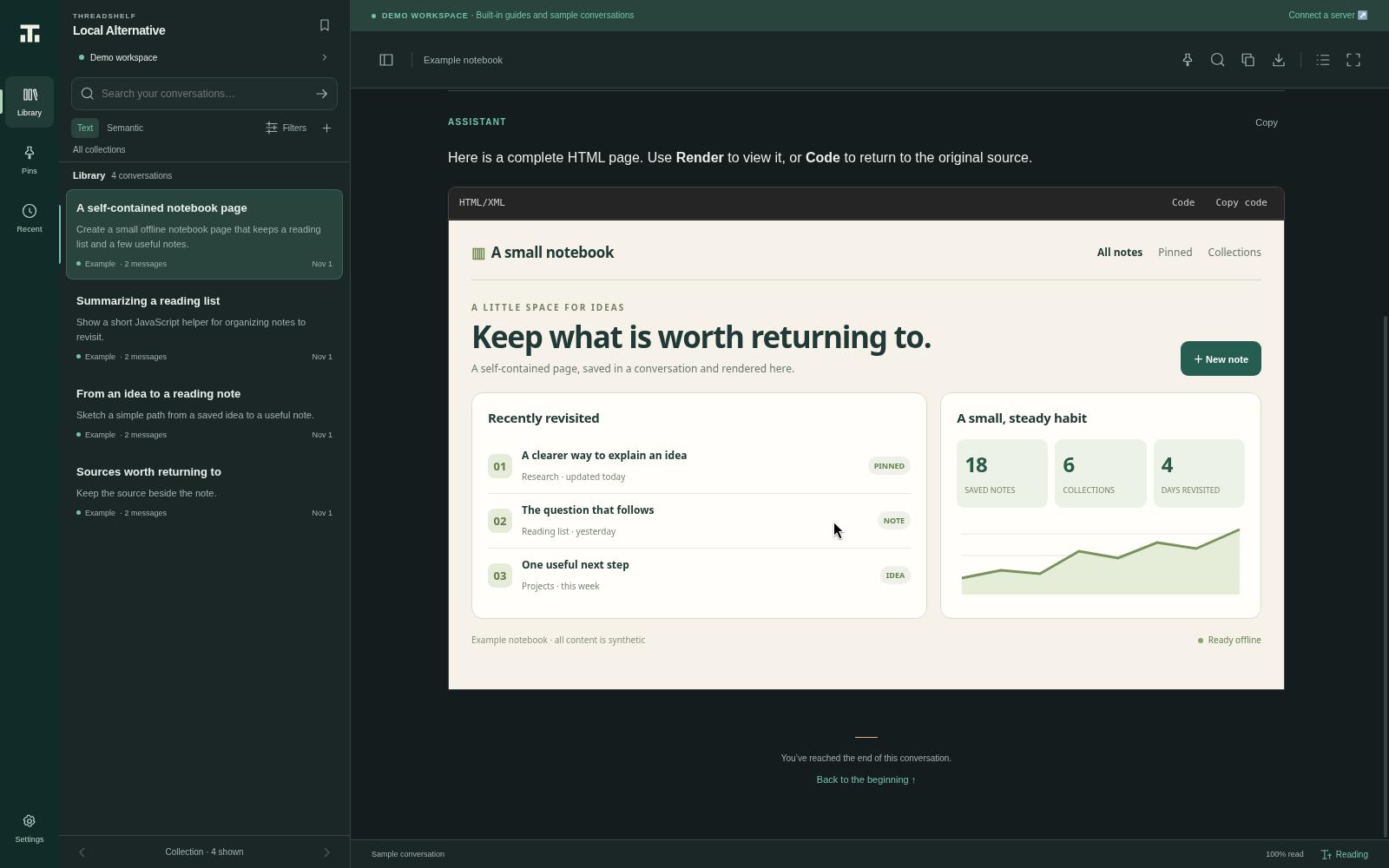
Complete HTML5 documents in unlabelled, unknown, html, htm or html5 code blocks can offer Code / Render. The page must include its doctype and explicit html, head and body structure. Fragments, malformed or multiple documents, escaped examples and blocks labelled as programming languages stay code. The initial view is Code. Copy and download always use the original source; standalone SVG keeps its separate image-only preview.
The HTML viewport fills the code block’s interior width at a responsive 16:9 ratio, without an added frame or margin. Its native surface remains clipped to the reading pane on initial display and during zoom, resizing and scrolling. Loading is transparent against the existing block background; failures show an error and leave source inspection available. Code and other render layouts keep their own dimensions.
Render opens a temporary native sandbox. The page may run its own JavaScript, but has no Node.js or application API and cannot read the archive, settings or arbitrary local files. Permissions, popups, downloads, navigation and form submissions are restricted. Leaving the conversation or returning to Code destroys the preview and its temporary state.
Allow external resources in HTML previews starts enabled in the reading settings. It permits guarded public HTTPS resources only; local/private destinations and unsupported protocols are blocked. Turning it off stops active previews and blocks further external requests, while embedded scripts/assets remain usable. It does not control ordinary conversation images or configured providers and cannot undo a completed request. The standalone offline demo does not execute these native previews.
Listen to a message
The desktop application can read an individual message through the optional Text-to-Speech controls. Enable speech in Settings, choose a voice and select a message speaker button. This does not create a new answer or change the retained server conversation.
Copy or export
Copy conversation copies plain conversation text to the clipboard. Export conversation opens the desktop save flow for a Markdown file. The export includes the conversation title and role-labelled messages; it is a document copy rather than a backup of server configuration, search indexes, pins or settings.
A Markdown reader may render features differently from Alternative. Preserve original source exports when full provider fidelity is important. The exported file and clipboard contain conversation text: review them before sharing. Browser demo downloads use the browser’s normal save behavior.
See appearance and data for reading size, width, reasoning and state storage.